
Android Virtual Pen
by Mathieu Beliveau
Capture android pen input on Linux
About
Android Virtual Pen allows to send pen input data from your android device to a pc host where it emulates a virtual pen. What distinguishes this solution from others, is emphasis on low-latency to provide the best drawing experience.
The Android app itself can be found on the github repo at github.com/androidvirtualpen/virtualpen/releases/download/0.1/virtual-pen.apk and soon on the Google Play Store if you wish to support further development.
Features
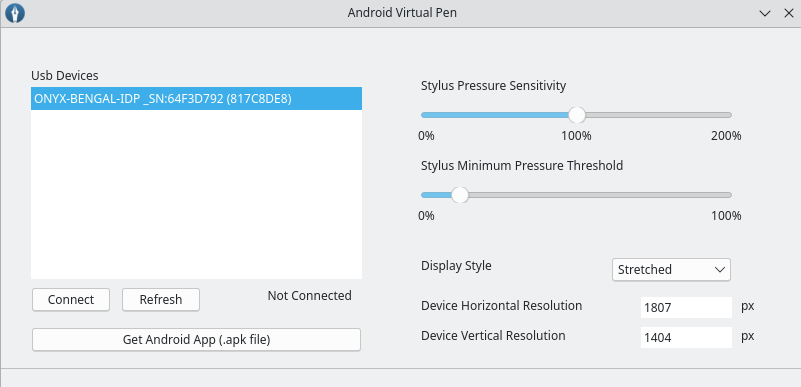
- Adjustable pen pressure threshold such that you can move the pen-cursor without triggering an unintended click/draw action - Adjustable pen pressure sensitivity such that you can customize the force needed to be applied - Eraser support - Switch between stretched and fixed display mode. In stretched mode, the android device screen is stretched and completely mapped to your PC primary screen. Note that this is required to fully reach the boundaries of your PC screen from your device but causes some slight distortion if the screen ratios (android vs PC) are not the same. In fixed mode, if the android device screen resolution fits into your PC screen, the android device display is centered and mapped on the host at a 1:1 ratio. This mode should incurr no distortion. - Detects available usb devices and automatically save your settings for each - Supports both X11 and Wayland
Usage
Start the android application connected to your PC through usb. It should warn that the link with the PC is not yet established. For the link to be fully establish, you need to start the virtual-pen app on your PC which will set your device in accessory mode. On the linux host, launch the Virtual Pen application, select your device (hit refresh if not shown) then enter the device's screen horizontal and vertical resolutions and then press "connect". Upon the first connection, Android should ask you to allow the Virtual Pen app to handle the connection - press ok. Once this done, you should be able to use your pen and see your PC cursor move as intended. Note that this software is still in beta stage and still ought to be tested with various devices.
Permissions
2 permissions weaken the sandbox. Flatsonar asks before installing.
- all devices (/dev): webcams, disks, raw hardware
--device=all - X11 display: X11 lets apps read input and windows of other apps
--socket=x11 - network
--share=network - inter-process communication (needed for X11)
--share=ipc - Wayland display
--socket=wayland - X11 display, only when Wayland is unavailable
--socket=fallback-x11 - access to xdg-config/kdeglobals
--filesystem=xdg-config/kdeglobals:ro - talks to com.canonical.AppMenu.Registrar
--talk-name=com.canonical.AppMenu.Registrar - talks to org.kde.kconfig.notify
--talk-name=org.kde.kconfig.notify - talks to org.kde.KGlobalSettings
--talk-name=org.kde.KGlobalSettings
Who publishes this
The creator demonstrably controls this app id: Flathub verification, the hosting account owns the namespace, or a well-known file on their domain.
- verified on Flathub: the developer proved they control this app id
publisher:flathub
Maintenance
Recent activity on the upstream repository, or built and reviewed by Flathub.
No staleness signals: recent activity, or built and reviewed by Flathub.